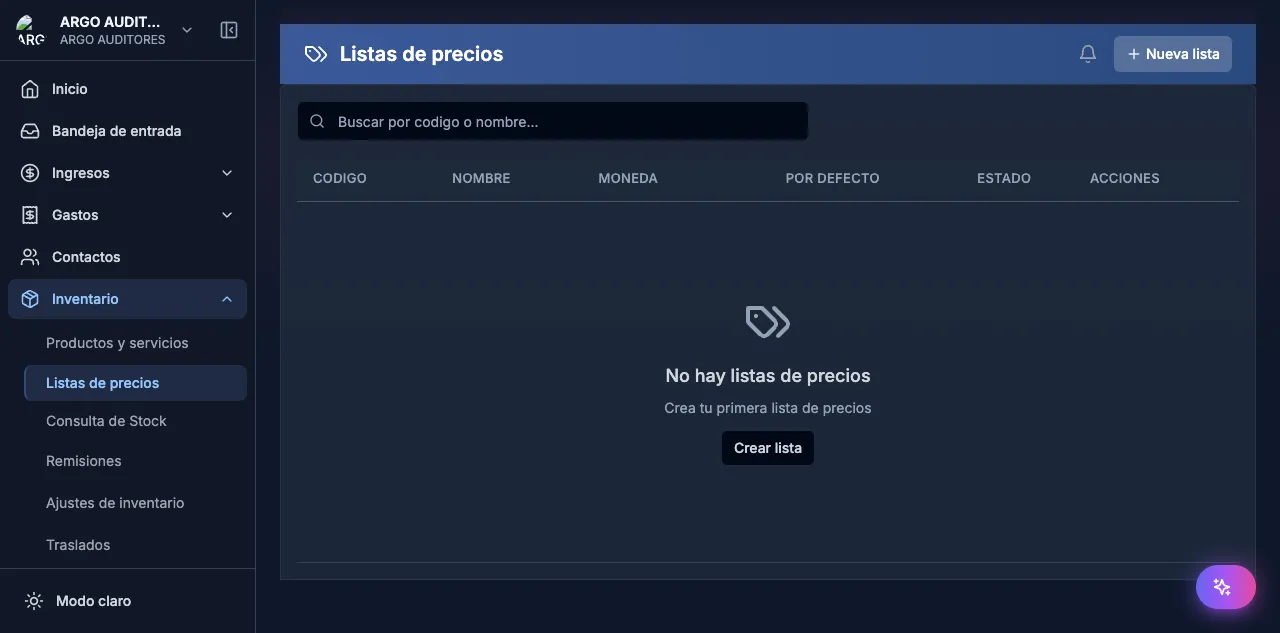
Price lists
How to create differential price lists, assign them to customers and understand automatic price resolution in invoices and POS.
Updated: April 5, 2026
Price lists let you handle differential pricing by channel, segment or customer without having to change the product price each time. For example: counter price, wholesale price, distributor price, promo price.
contable.io applies the right list automatically when you create an invoice or sell at the POS, following a clear priority hierarchy.
Price resolution hierarchy
When you add a product to an invoice or quotation, contable.io looks up the price in this order:
- Customer-assigned price, if they have a specific price list.
- Default list price, if active for the operation type (retail, wholesale, etc.).
- Product price defined on its master record.
- Zero (last resort, if nothing is configured).
First match wins. This lets you have a general scheme (wholesale list) and one-off exceptions (a customer with extra discount) without overwriting anything.
Create a price list
- Go to Sales → Price lists → + New list.
- Give it a clear name (e.g.
Bogotá Wholesalers,Monthly Promo). - Define validity: start date, end date (optional).
- Pick whether the list applies as fixed price per product or as percentage discount over the base price.
- Save.
Load prices into the list
Once created, add products to it:
- Manually, searching product by product and assigning price.
- By bulk Excel import: download the template, fill it, upload it.
- By category: apply the same percentage discount to a whole category.
Assign list to a customer
- Open the contact in Contacts.
- In the Commercial tab, find the Price list field.
- Pick the matching list.
- Save.
From that point, every invoice, quotation or POS sale for that customer will apply the prices automatically.
Full example
Imagine you sell Olive oil 1L with a base price of $25,000.
You have two lists:
- Wholesale: $20,000 (20% discount)
- Distributors: $18,000 (28% discount)
You configure three customers:
| Customer | List assigned | Price they see |
|---|---|---|
| Corner Store | None | $25,000 (base) |
| Sun Supermarket | Wholesale | $20,000 |
| Andean Distributor S.A.S. | Distributors | $18,000 |
When you invoice Andean Distributor, the line automatically appears at $18,000. You don’t have to remember the special price.
Expiry and time-bound promotions
If the list has an end date, contable.io stops applying it automatically the next day. Useful for one-off promos:
Black Friday 2026list valid Nov 27 to 30.- Assigned to “all customers” for those days.
- Disables itself with no intervention.
Common errors
- Price doesn’t change when selecting customer. Check that the list has the product loaded and that its validity covers today.
- Two active lists give different prices. Remember the hierarchy: customer’s list always wins over default list.
- POS shows base price. The POS also respects the list, but requires assigning a customer before charging. If you sell to “End consumer”, base price applies.