Quotations from the POS
How to create, look up and convert quotations from the Point of Sale interface.
Updated: April 5, 2026
The POS shares the Quotations module with the main system, so you can create quotations directly from the till for customers asking for a quote at the counter — no need to switch apps.
This is especially useful when customers ask for prices on multiple items before deciding, or in made-to-order businesses (combos, bundles, installations).
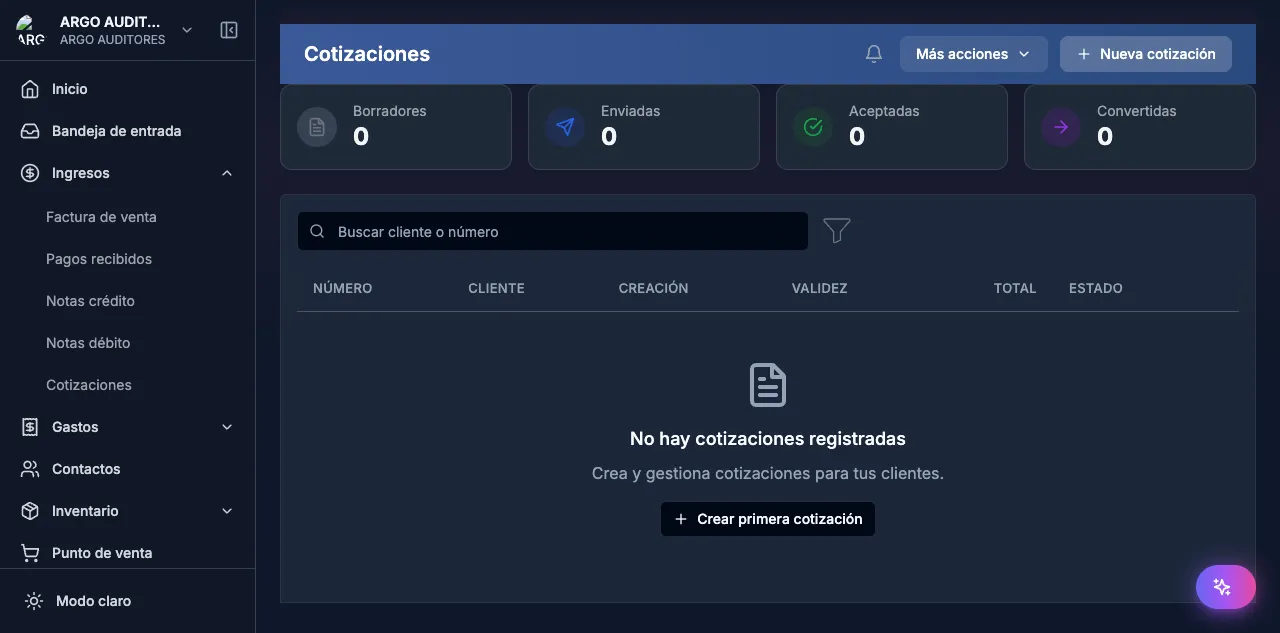
Open POS Quotations
From the POS side menu, tap Quotations. You’ll see:
- Recent quotations list with status (Draft, Sent, Approved, Expired).
- + New quotation button.
- Filter by status and search by customer.
Create a quotation from the POS
The flow is identical to the main system:
- Tap + New quotation.
- Pick the customer (or create one on the fly).
- Add products from the POS search (same catalog as sales).
- Edit quantities and prices if needed.
- Set the validity date (default 30 days).
- Tap Save.
Unlike a sale:
- No inventory deduction.
- No accounting entry.
- No DIAN document.
- Stays in Draft until you send it.
Send to the customer
After saving:
- Tap Send to customer.
- Pick the channel: WhatsApp, email, or copy link.
- If the customer has a WhatsApp number on file, it opens the chat with a pre-filled message.
- The quotation moves to Sent.
Convert quotation to POS sale
When the customer approves the quotation (from the customer portal or you mark it approved):
- Open the quotation from the POS.
- Tap Convert to sale.
- The POS loads the cart with all products, prices and discounts from the quotation.
- Verify you have stock available (the system warns if anything ran out).
- Continue with the normal payment flow.
When you confirm payment, the POS sale is created, inventory is deducted, the DIAN equivalent document is issued, and the quotation is marked as Converted with a link to the resulting sale.
Look up existing quotations
The POS quotations list shows all of them in the system, not just those created from the till. You can:
- Filter by status: Draft, Sent, Approved, Expired, Converted, Rejected.
- Search by customer name or quotation number.
- Open any one to see detail, resend to the customer or convert to sale.
Typical use cases
- Custom combos: customer asks for a quote on a built combo. You quote, approve and convert to sale right there.
- Takeaway orders: customer asks for a catering quote, returns next day, you convert and charge.
- Price comparison: several open quotations for the customer to choose one — convert only that one.
- Made-to-order work: installation or repair services that need prior approval.
Differences vs the main Quotations module
The POS shows the same data: a quotation created from the main system shows up in the POS and vice versa. The only differences are cosmetic:
- The POS list is more compact and touch-friendly.
- In the main system you can manage versions, add attachments and edit the PDF template.
- Complex quotations (many lines, files, long notes) are easier to edit in the main system.