Roles and access control
Complete reference of the roles available in contable.io and the permissions each one grants.
Updated: April 5, 2026
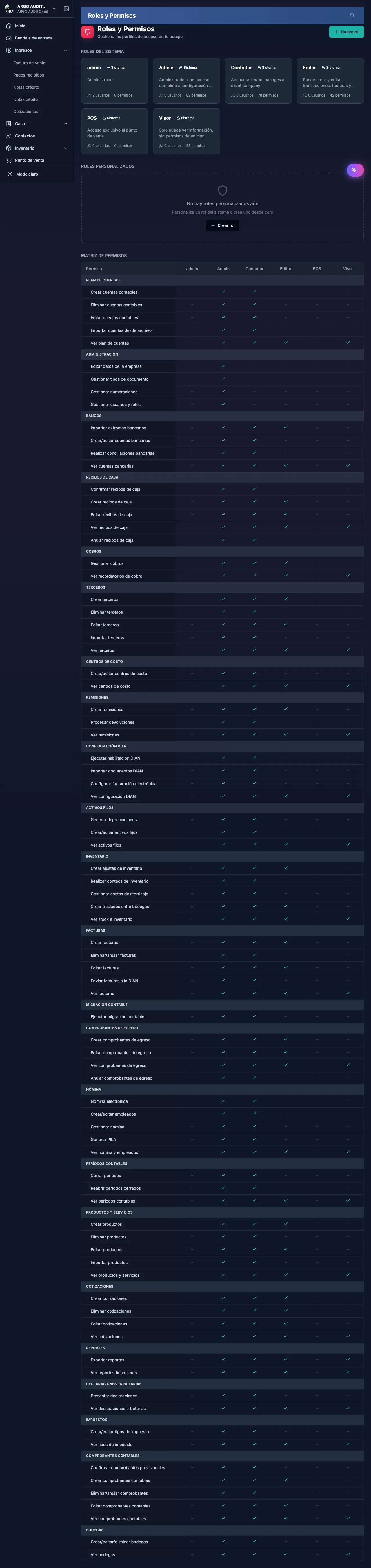
contable.io uses a role system to control what each team member can do. Each user assigned to a company has exactly one role.
Available roles
Owner
The user who creates the company. Highest access level.
- Only one Owner per company
- Cannot be removed or have role changed (unless ownership is transferred)
- Full access to all modules and settings
Admin
General management role. Can configure the company and manage users, plus operate all modules.
Accountant
Accounting-professional role. Full access to accounting, invoicing, reports and inventory, but cannot modify company settings or manage users.
Clerk
Data-entry role. Can create invoices and register payments, but cannot confirm/void critical documents or access advanced reports.
Permissions summary
| Area | Owner | Admin | Accountant | Clerk |
|---|---|---|---|---|
| Company settings | ✓ | ✓ | — | — |
| Invite/remove members | ✓ | ✓ | — | — |
| Accounting (create) | ✓ | ✓ | ✓ | ✓ |
| Accounting (confirm/void) | ✓ | ✓ | ✓ | — |
| Sales invoices (create) | ✓ | ✓ | ✓ | ✓ |
| Sales invoices (confirm/void) | ✓ | ✓ | ✓ | — |
| Purchases (create) | ✓ | ✓ | ✓ | ✓ |
| Purchases (confirm) | ✓ | ✓ | ✓ | — |
| Inventory | ✓ | ✓ | ✓ | partial |
| Bank reconciliation | ✓ | ✓ | ✓ | — |
| Financial reports | ✓ | ✓ | ✓ | — |
Best practices
- Owner: legal representative / business owner
- Admin: trusted managers who configure the company
- Accountant: the accountant or accounting firm
- Clerk: support staff entering data daily — create-then-review workflow adds an oversight layer
2026 enhancements
Improved team management UX
The Settings → Team page was redesigned:
- Visual list with avatar, name, email, current role, last login
- Inline role change (no modal) with confirmation
- Role filter and name/email search
- Owner indicator (cannot be accidentally downgraded)
Owner safeguards
To prevent accidental admin lockouts:
- You cannot downgrade the last owner of a company. System forces you to promote someone else first.
- You cannot remove yourself while you’re the sole owner.
- Owner role changes require password confirmation.
- All promotions/demotions logged in audit with who, when, and from where.