Inventory in the POS
How to manage the POS catalog and stock — categories, margins, quick adjustments and the dedicated POS Inventory page.
Updated: April 5, 2026
The POS shares inventory with the main system but has a dedicated page —/pos/inventario— optimized to review and adjust stock quickly from the counter without leaving for the full app.
This page only shows products available in the configured POS warehouse and lets you filter by visual category, see margins, and make ad-hoc adjustments without losing sight of in-progress sales.
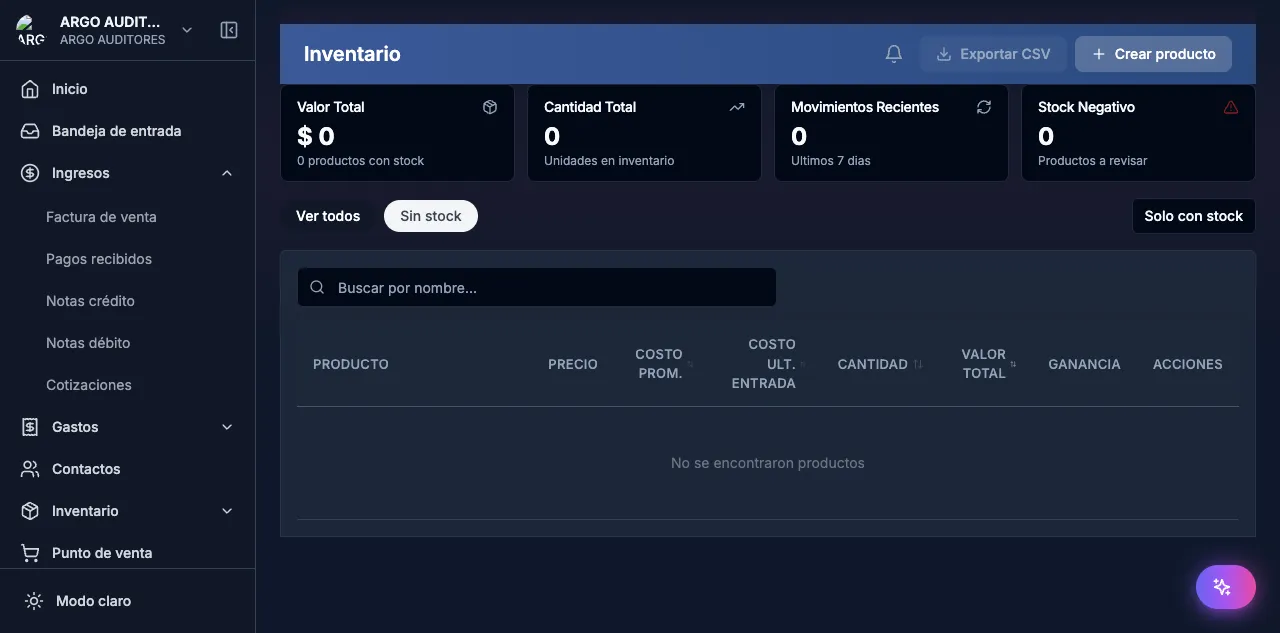
Open POS Inventory
From the POS side menu, tap Inventory. You’ll see:
- Category chips at the top to filter the catalog.
- Product grid with photo, name, price and current stock.
- Margin indicator (sale price vs average cost) in green, yellow or red.
- Search by name, code or SKU.
The page respects the POS warehouse of the active station: if your shift is open at “POS Centro”, you only see stock from that warehouse.
Filter by category
Categories are the same you define in the main system under Inventory → Categories. Each product belongs to a single category and optionally a subcategory.
In the POS:
- Tap a chip to show only products in that category.
- Tap All to see the full catalog again.
- Categories with no in-stock products don’t appear.
See margins
Each product card shows its current margin:
| Color | Meaning |
|---|---|
| 🟢 Green | Margin ≥ 30% |
| 🟡 Yellow | Margin between 10% and 30% |
| 🔴 Red | Margin < 10% (or loss) |
Margin is calculated from the product’s weighted average cost vs the active sale price. If you have multiple price lists, the displayed margin is against the base price.
This lets you spot mispriced products at a glance without opening accounting reports.
Quick stock adjustments
Tap a product in the grid to open its detail. From there you can:
- See stock by warehouse (not just the POS one).
- Adjust stock by entering the new physical count (creates an
ADJUSTMENTinventory movement). - Change price without leaving the POS.
- Mark as out of stock so it doesn’t show up in the sales grid.
POS adjustments are recorded with your user and a reason (
POS adjustment) in the movement history.
Load new stock
The POS does not allow recording incoming stock (purchases, supplier receipts). For that use the main system:
- Go to Purchases → New purchase invoice, register the purchase and confirm. Stock enters the chosen warehouse.
- Or use Inventory → Movements → Inventory entry for manual adjustments without an invoice.
After loading stock in the main system, the POS sees it automatically on page refresh.
Differences vs main inventory
| Action | POS | Main system |
|---|---|---|
| See stock by warehouse | ✅ (only POS warehouse) | ✅ (all warehouses) |
| Manual adjustments | ✅ | ✅ |
| Record purchases | ❌ | ✅ |
| Create new products | ❌ | ✅ |
| Bulk Excel import | ❌ | ✅ |
| Custom fields | ❌ | ✅ |
| Inventory reports | ❌ | ✅ |
The POS is built for counter operation, not catalog administration. Structural changes (new products, custom fields, categories) happen in the main system.
Common errors
- “I don’t see all my products”: check that the category filter is on “All” and that the POS warehouse has stock loaded.
- “Margin is red on a product I know is profitable”: review the average cost in the main system. It may be inflated by a wrongly recorded purchase.
- “I changed price in the main system and POS doesn’t reflect it”: refresh the POS page (
F5).