Create products and services
How to register products and services with prices, taxes and chart-of-accounts mappings.
Updated: April 5, 2026
Products and services are the items you sell and buy. Each product has its price, tax type and linked chart-of-accounts entries.
Product types
| Type | Tracks inventory | Example |
|---|---|---|
| Product | Yes | Merchandise, raw materials |
| Service | No | Consulting, technical support |
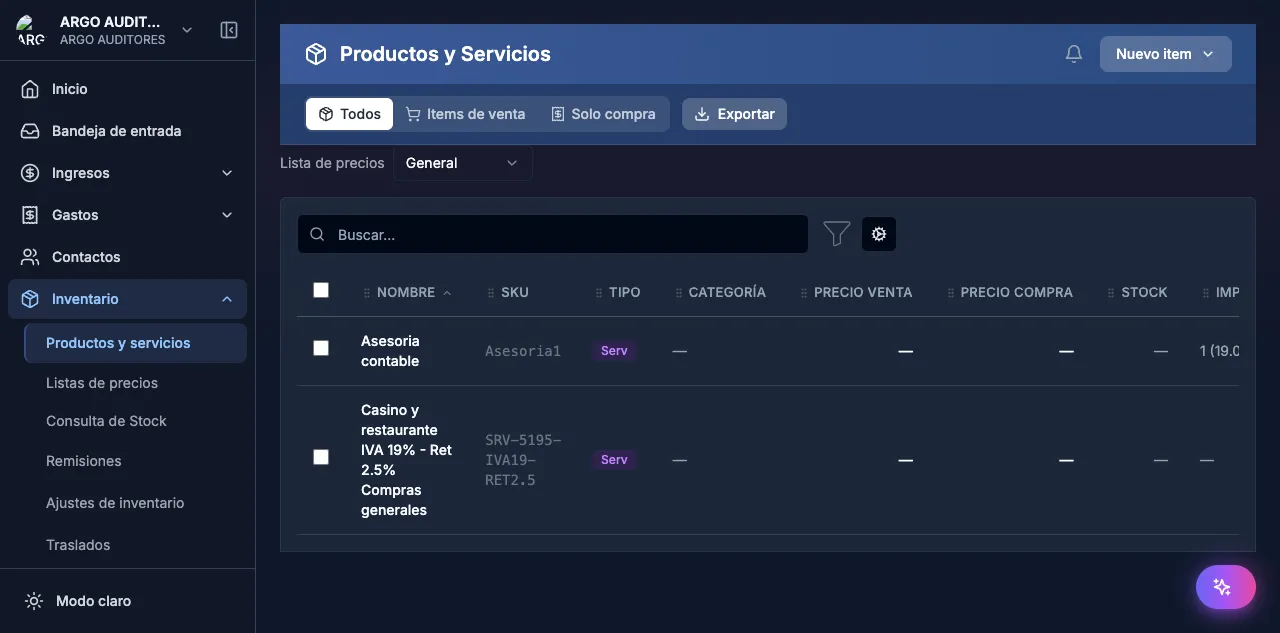
Create a product
Go to Inventory
From the side menu, go to Inventory → Products and services. Click + New product.
Fill in the basics
- Name: product or service name
- Code/SKU: internal reference code (optional)
- Type: Product or Service
- Description: extra detail (optional)
Set prices
- Sale price: unit price for sales invoices
- Purchase price: unit price for purchase invoices (reference)
Assign the tax type
Pick the applicable tax type:
- VAT 19%: general rate
- VAT 5%: differential rate
- Excluded: no VAT
- Exempt: 0% VAT
Assign accounts
Each product needs accounts for auto-posting:
- Income account: where income is recorded on sale (e.g. 4135)
- Cost/expense account: for cost or expense on purchase (e.g. 6135)
- Inventory account: only for physical products (e.g. 1435)
Save
Click Save.
Products on invoices
When you add a product to an invoice, contable.io automatically uses:
- The configured price (editable on the invoice)
- The tax type to calculate VAT
- The accounts to generate journal entries on confirmation
2026 enhancements: product list
The products page now includes tools built for large catalogs:
- 10 configurable columns with a column picker — pick what to show (code, name, sale price, average cost, stock, margin, category, custom fields, tax, status).
- Inline editing of price, cost and name directly from the list, no modal needed.
- Drag-and-drop to reorder columns and to change the product display order.
- Sorting by any column via its header.
- Excel import now supports category, custom fields and bulk actions (activate/deactivate, move to category, assign TaxRate).
- Product image can be uploaded from
CreateProductDialogand shows up in the POS and main system list. - Custom fields defined in
Inventory → Custom fieldsappear as optional columns (see Custom fields).
FAQ
Can I change the accounts after creating the product?
Yes, you can edit accounts at any time. Changes apply only to future invoices, not retroactively.
What if I don’t assign accounts?
You can’t use the product on invoices. Accounts are required for the system to generate entries automatically.