How to create a sales invoice
Step-by-step guide to creating and managing sales invoices in contable.io.
Updated: April 5, 2026
Sales invoices are the main document for recording your income. contable.io automatically generates the corresponding journal entries when you confirm the invoice.
Before you start
You need:
- At least one customer registered in Contacts
- At least one product or service created in Inventory
- Tax type configured on your products (VAT 19%, excluded, etc.)
Create the invoice
Go to new invoice
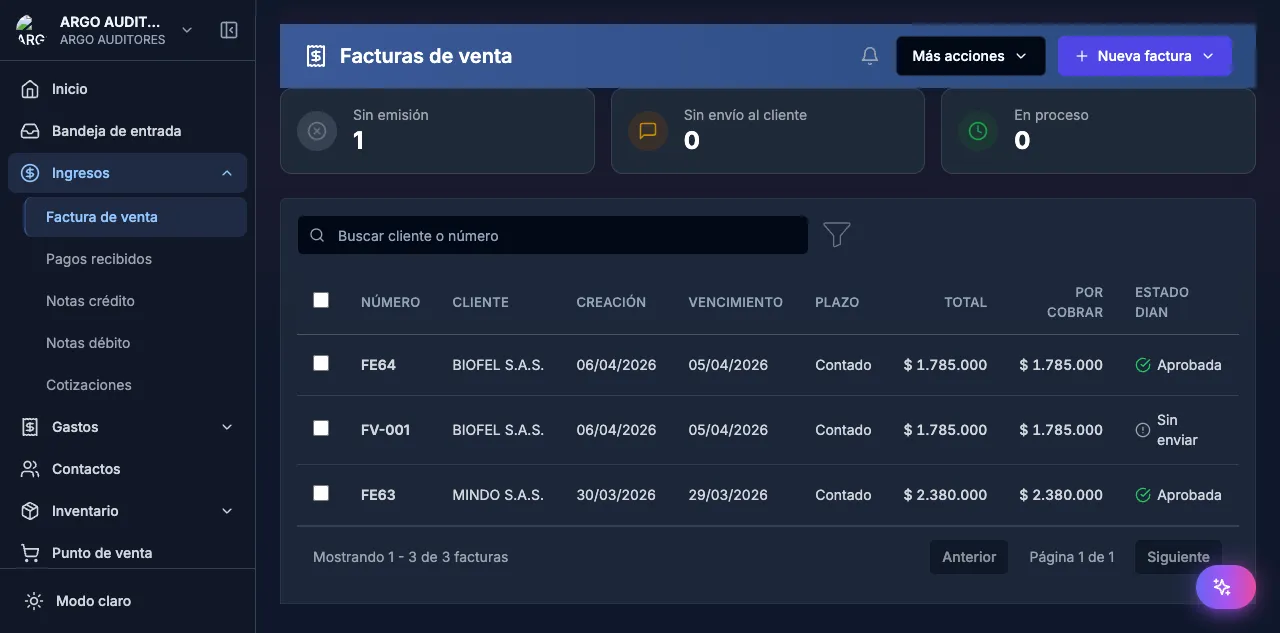
Go to Income → Sales invoice. Click New invoice in the top right.
Pick the customer
Use the search field to find the customer by name or NIT. If you need to create a new one, click + Create new at the bottom of the dropdown.
Configure invoice data
- Date: invoice issue date (defaults to today)
- Due date: when you expect payment
- Invoice number: assigned automatically per your numbering config
Add items
For each product or service:
- Search for the product.
- Adjust quantity.
- Verify or change the unit price.
- VAT and withholdings are calculated automatically.
Review totals
| Concept | Description |
|---|---|
| Subtotal | Sum of items before tax |
| VAT | Per-item VAT |
| Withholdings | ReteFuente, ReteICA, ReteIVA per config |
| Total | Amount the customer owes |
Save
Click Save. The invoice is created as provisional.
Invoice states
| State | Meaning |
|---|---|
| Provisional | Editable. No accounting impact. |
| Confirmed | Immutable. Automatic journal entries generated. |
| Voided | Cancelled. Reversal entry generated. |
Automatic journal entries
When confirming a sales invoice, contable.io generates:
| Account | Debit | Credit |
|---|---|---|
| Customers (1305) | Invoice total | |
| Income (4135) | Subtotal | |
| VAT payable (2408) | VAT | |
| ReteFuente (1355) | ReteFuente | |
| ReteICA (1355) | ReteICA |
FAQ
Can I change the invoice number?
No. Numbering is assigned automatically to comply with DIAN requirements. Configure prefix and range in Settings → Numbering.
How do I apply a discount?
On each item line you can add a percentage or flat discount. It reflects in the totals automatically.
How do I add notes to the invoice?
Use the Notes/Observations field at the bottom. These notes appear on the invoice PDF.
2026 enhancements
Per-line description
Each invoice line can have a free-text description independent of the product name. Useful for detailing variants, batches, service dates, or any item-specific note. It appears in the PDF and the DIAN XML.
Product income account
Before, the system posted all income to default account 4135xx. Now it respects the income account configured on each product, letting you split income per line of business (services, goods, rentals) without reclassifying afterward.
Full DIAN PDF
The electronic invoice PDF now automatically includes:
- CUFE (Electronic Invoice Unique Code).
- QR code opening the official graphical representation.
- Active DIAN resolution with number and date.
- Authorized numbering range.
This satisfies the visual requirements the DIAN enforces for electronic invoice graphical representation.
XML/ZIP download
From the detail view of a DIAN invoice you can download:
- XML signed and sent to the DIAN.
- ZIP with XML + PDF + Application Response (
.AR).
Useful for audits, fiscal support and reconciliation with customers who need the original XML.